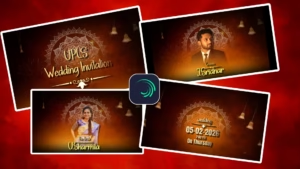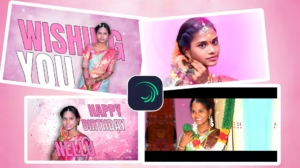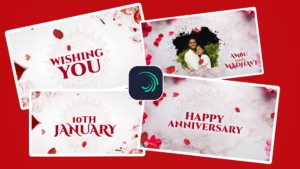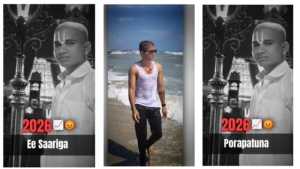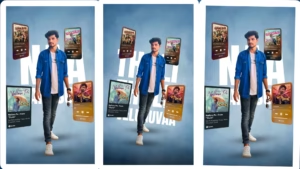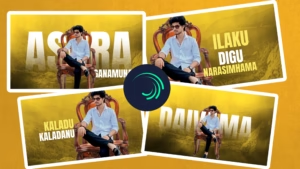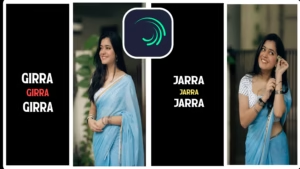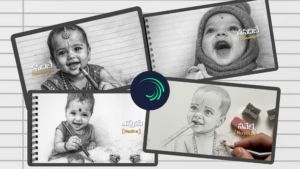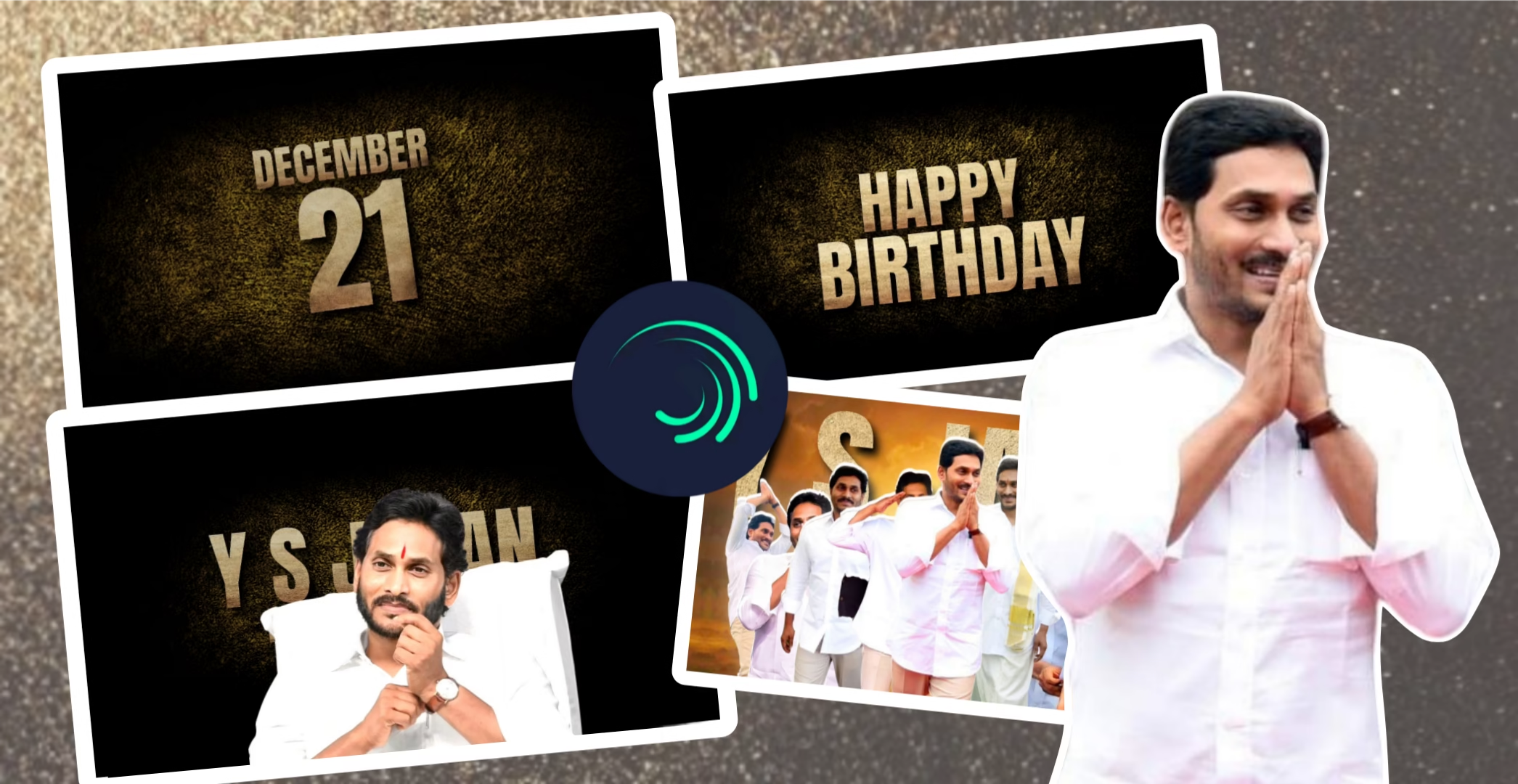
Birthday videos have become one of the most popular forms of digital celebration. Whether it’s for a friend, a family member, a public figure, or a fan tribute, a well-edited birthday video can leave a strong emotional impact. With the rise of mobile video editing apps, Alight Motion has emerged as one of the most powerful tools for creating professional-quality birthday edits directly on a smartphone.
This article explains how to create an eye-catching birthday video using Alight Motion, covering concept planning, editing techniques, effects, typography, color grading, export settings, and optimization for social media. This guide is suitable for beginners as well as intermediate editors and can be used as a complete website article.
Why Choose Alight Motion for Birthday Video Editing?
Alight Motion stands out from other mobile editing apps because it offers features usually found in desktop software. Some key advantages include:
- Professional-level keyframe animation
- Support for vector and raster graphics
- Advanced text animation controls
- Multiple blending modes
- Color correction and cinematic effects
- High-quality export options
Because of these features, Alight Motion is ideal for creating birthday videos with cinematic intros, glowing text, photo transitions, slow-motion effects, and background music synchronization.
Planning Your Birthday Video
Before opening Alight Motion, proper planning saves time and improves quality.
1. Decide the Theme
Choose a theme based on the person and audience:
- Elegant gold and black theme
- Cinematic celebration style
- Minimal clean design
- Fan tribute or public celebration
- Emotional or motivational style
A consistent theme helps in choosing fonts, colors, and transitions.
2. Collect Media Assets
Prepare all assets in advance:
- High-quality photos
- Short video clips
- Birthday text lines (name, date, wishes)
- Background images or textures
- Music track (instrumental or song)
Make sure images are high resolution to avoid pixelation.
Creating the Project in Alight Motion
Step 1: New Project Setup
- Open Alight Motion
- Tap + Create New Project
- Choose aspect ratio (16:9 for YouTube, 9:16 for Reels)
- Set frame rate (30fps or 60fps)
- Set resolution (1080p recommended)
Step 2: Background Design
- Add a solid color, gradient, or texture background
- Use dark shades like black or deep brown for premium looks
- Apply subtle grain or noise for cinematic feel
Text Animation for Birthday Videos
Text animation plays a major role in birthday edits.
Birthday Date Reveal
- Add text layer (example: “December 21”)
- Use scale and opacity keyframes
- Apply motion blur for smooth entry
- Add glow or shadow for depth
Happy Birthday Title
- Use bold cinematic fonts
- Animate text with slide, zoom, or fade effects
- Sync animation with music beats
Use easing curves for smooth movement instead of linear animation.
Photo and Video Transitions
Smooth transitions make the video look professional.
Popular Transition Styles
- Zoom in / zoom out
- Light leaks
- Fade with blur
- Swipe transitions
- Flash effects on beat drop
To create transitions:
- Overlap clips slightly
- Add blur and scale keyframes
- Adjust opacity gradually
Color Grading and Effects
Color grading enhances emotional impact.
Basic Adjustments
- Increase contrast slightly
- Reduce saturation for cinematic style
- Adjust highlights and shadows
Effects to Use
- Glow
- Vignette
- Grain
- Motion blur
- Lens flare (subtle use)
Avoid overusing effects; simplicity looks premium.
Music Synchronization
Music is the heart of birthday videos.
Tips for Music Sync
- Cut visuals on beat drops
- Add flash or zoom effects on beats
- Slow motion during emotional parts
- Speed ramps for dynamic sections
Always trim audio carefully and fade in/out smoothly.
Final Export Settings
Use proper export settings for best quality:
- Resolution: 1080p or 4K
- Frame Rate: Same as project
- Bitrate: High or Custom (10–20 Mbps)
- Format: MP4
Check video once after export for errors or glitches.
Optimization for Social Media
For Instagram & Reels
- Use vertical (9:16)
- Keep video under 30–45 seconds
- Add bold readable text
For YouTube
- Use horizontal (16:9)
- Add cinematic intro and outro
- Export in high bitrate
Common Mistakes to Avoid
- Overusing effects and transitions
- Low-quality images
- Poor font selection
- Unsynced music and visuals
- Ignoring aspect ratio
Avoiding these mistakes will instantly improve video quality.
Conclusion
Creating a birthday video in Alight Motion is a creative and rewarding process. With proper planning, clean animation, balanced effects, and good music synchronization, you can create stunning birthday edits that look professional and emotional. Whether you are editing for personal use, fan celebrations, or social media content, Alight Motion gives you full control to bring your ideas to life.
By following this guide, you can confidently design high-quality birthday videos that stand out and impress your audience.
Project link