Creating lyrical video edits has become one of the most popular creative hobbies today. With the rise of short-form video platforms and the continuous demand for visually appealing music edits, editors are constantly exploring new ways to bring songs to life. One of the standout songs that recently caught the attention of Telugu editors is “Chinni Gundelo” from the movie Andhra King Taluka. Its energetic rhythm and catchy tune make it perfect for creative motion-graphic lyrical videos.
In this article, I am going to share a complete and detailed guide on how I created a stylish and colorful “Chinni Gundelo” lyrical video edit using the Alight Motion app. This article is designed for both beginners and intermediate editors who want to learn how to make eye-catching lyrical videos using only a mobile phone. I will walk you through the concept, design elements, editing workflow, effects used, and important tips that can help you refine your own editing style.
Introduction to Alight Motion Editing
Alight Motion, often referred to as AM in the editing community, is one of the most powerful mobile editing apps available. It supports keyframe animation, custom fonts, effects, blending styles, masking, motion blur, color grading, and so much more. Whether you are editing a lyrical song, a reel, a slow-motion video, or an AMV, this app gives you full creative control from your mobile device.
For the “Chinni Gundelo” lyrical video edit, I used multiple layers, custom backgrounds, character cutouts, animated text, and beat-synced transitions. The entire goal was to make the edit look lively, cinematic, and attention-grabbing.
Concept & Planning the Edit
Before starting any edit, it’s important to decide the look and feel of the video. For this particular project, I wanted to create something:
Bright and colorful
Clean and modern
In sync with the rhythm of the song
Visually appealing and social-media ready
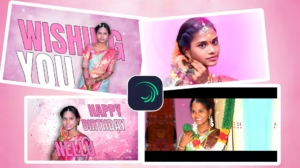
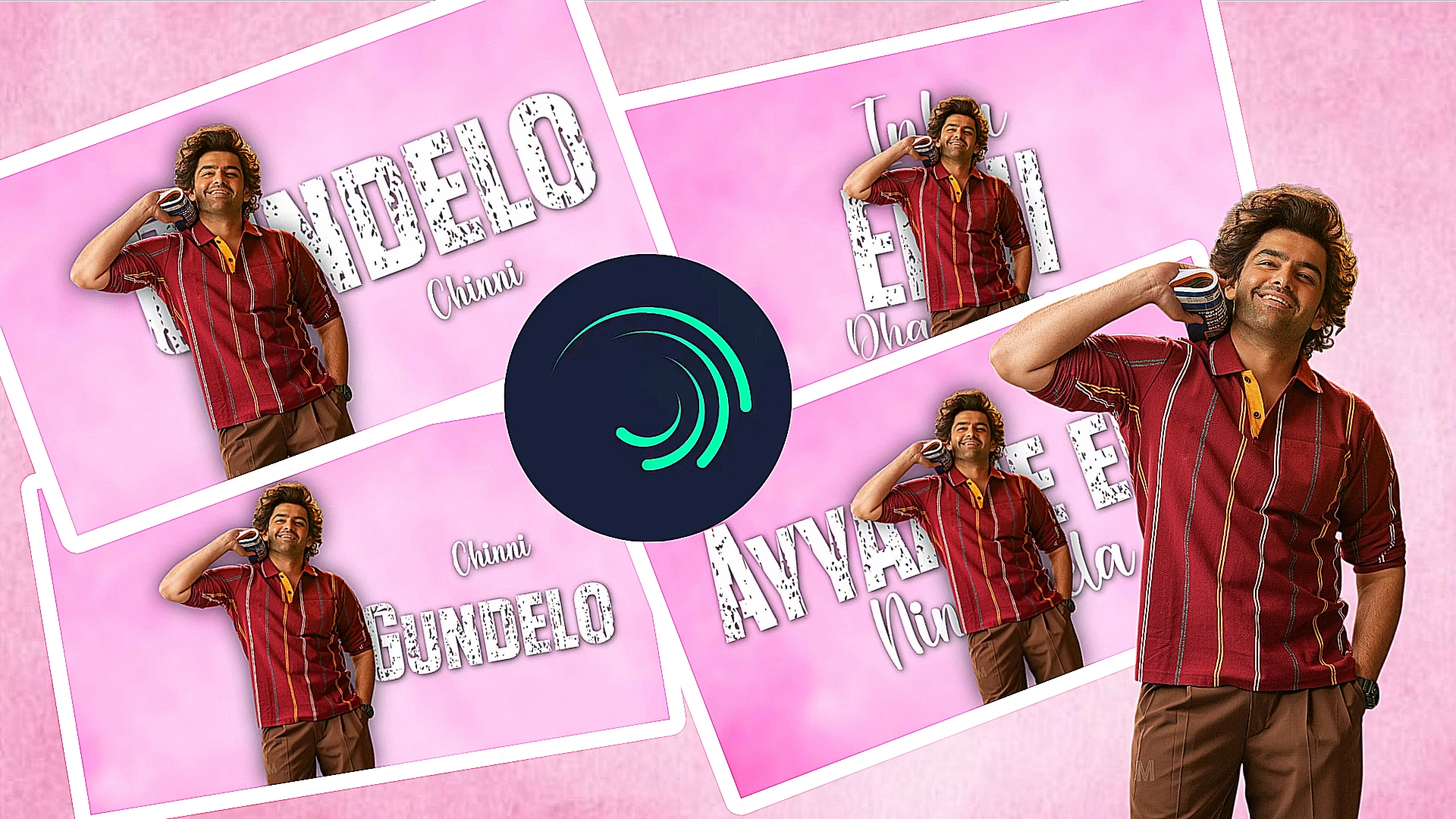
I chose a pink gradient theme, which matches the playful tone of the song and gives the video a fresh, aesthetic look. The character cutout on one side of the screen adds personality and makes each lyric card feel more dynamic.
Planning the transitions beforehand helped maintain consistency throughout the edit.
Editing Steps in Detail
Here is a complete breakdown of how the edit was created:
1. Preparing the Background
The background plays a crucial role in creating the mood of the video. For this edit:
I used a soft pink gradient background
Added slight texture for visual depth
Kept it clean so the lyrics remain the main focus
A minimal background ensures the viewer doesn’t get distracted and the edit looks more professional.
2. Adding the Character PNG
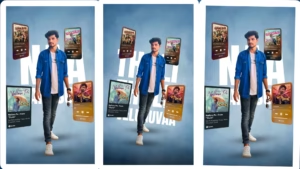
One of the highlights of this lyrical video is the character PNG placed on the side. I extracted the character using a high-quality cutout tool before importing it into Alight Motion.
Steps followed:
Imported PNG into the main project
Adjusted shadow and glow effects
Positioned the character to the left side
Ensured proper spacing for lyrics on the right
This balance makes the frame look neat and symmetrical.
3. Typography & Lyrics Styling
Typography is the heart of lyrical videos. For “Chinni Gundelo,” I wanted the text to look bold, clear, and stylish. I used:
A cinematic serif font for main lyrics
A cursive font for small word highlights
Drop shadows for readability
Slight textures on letters for a rustic effect
Each lyric appears with animations to match the music. This makes the viewer feel connected to every word.
4. Keyframe Animations
Alight Motion allows precise keyframing, which is essential for smooth lyric movement. For every lyric, I applied:
Scale-in animation
Light bounce motion
Fade-in and fade-out
Small rotation easings
The animations were synced to the beat, which makes the video look professional and rhythmic.
5. Adding Motion Graphics
To make the video more attractive, I added:
Wave lines
Circular animations
Glow strokes
Light particles
These elements bring extra energy to the video without taking attention away from the lyrics.
6. Transition Design
Clean transitions keep the viewer engaged. I used:
Slide transitions
Zoom-in cuts
Bounce effects
Quick wipes
Everything was synchronized to the music beats. The smoother the transitions, the more enjoyable the lyrical video becomes.
Export Settings for Best Quality
To ensure the edit looks perfect when uploaded online, the video was exported using:
1080p resolution
30 or 60 FPS (depending on platform)
High bitrate
MP4 format with compression disabled
This keeps the video crisp on YouTube, Instagram Reels, WhatsApp Status, and Facebook.
Why “Chinni Gundelo” Is Perfect for Lyrical Edits
The song offers:
A catchy melody
Positive vibes
Simple lyrics that flow well
Rhythm-friendly beats
A youthful and fun feel
These qualities make it perfect for editors who want to experiment with motion graphics and creative typography.
Tips to Improve Your Lyrical Video Edits
Here are some useful tips for budding editors:
Use high-quality PNGs
Pick a consistent color palette
Don’t overuse effects
Follow the beat carefully
Keep text readable at all times
Add subtle shadows and glow
Avoid clutter—keep spacing balanced
With practice, you will develop your own editing style.
Conclusion
Creating the “Chinni Gundelo” lyrical video edit in Alight Motion was a fun and creative process. This project combined vibrant backgrounds, stylish typography, character cutouts, and smooth motion graphics to produce a polished and professional output. If you enjoy lyrical video editing, this guide will help you understand the complete workflow from start to finish. With the right tools and creativity, anyone can create stunning lyrical videos directly from their phone.
Whether you’re a beginner or an experienced editor, Alight Motion offers endless possibilities. Keep experimenting, keep learning, and keep editing!
Full project
Font link