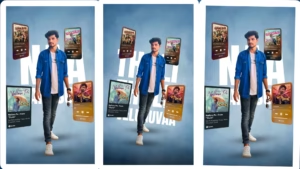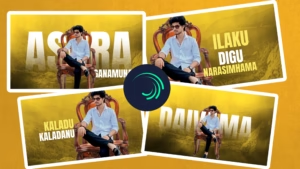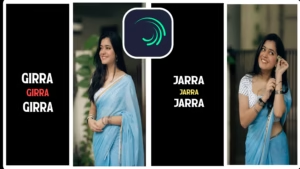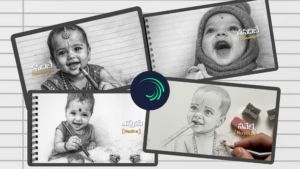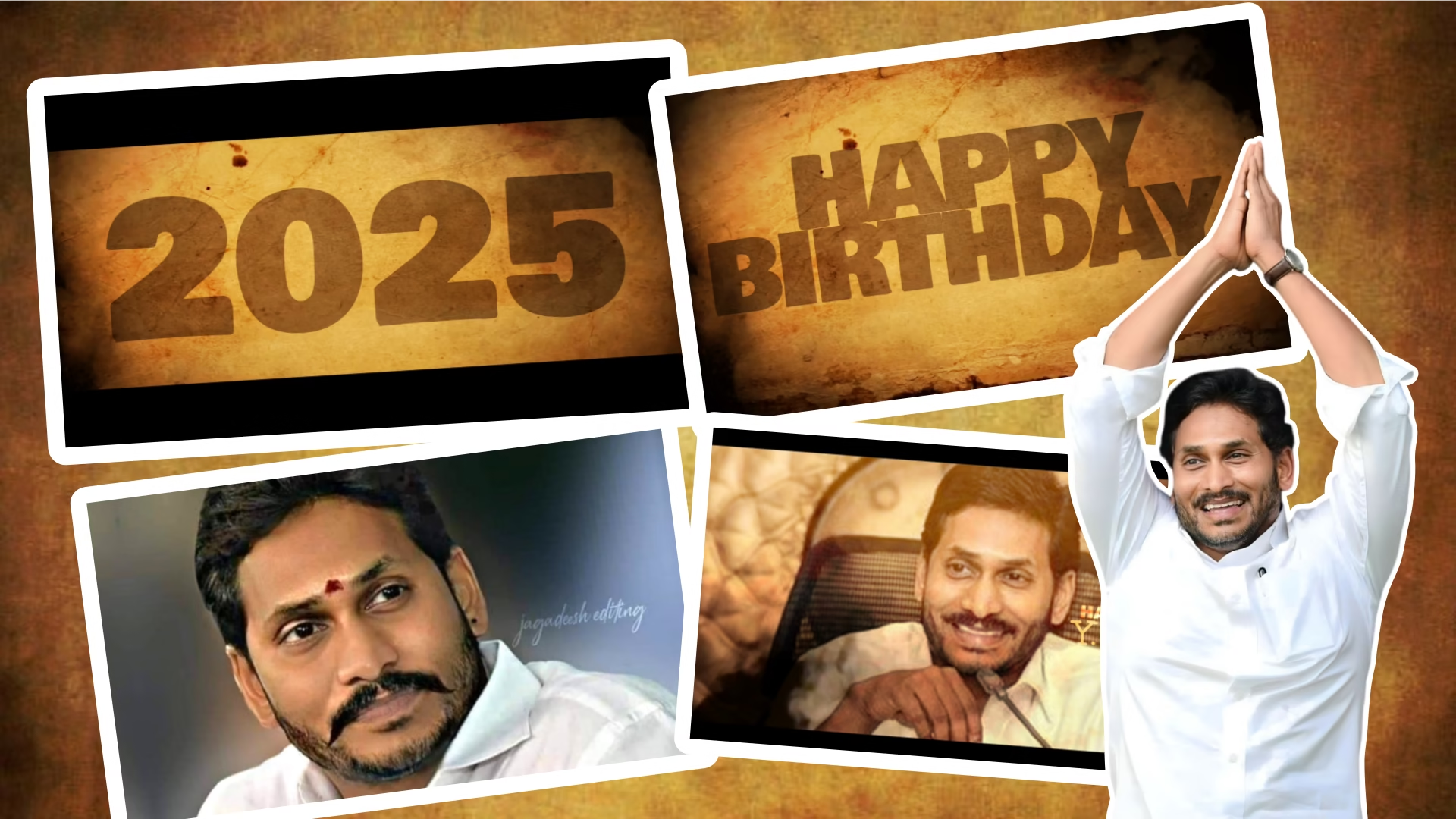
Birthday celebration videos are no longer simple slideshows. Today, creators aim for cinematic visuals, smooth animations, and emotional storytelling. With mobile apps becoming more powerful, Alight Motion has turned into a favorite choice for editors who want professional results directly from their smartphones.
This article presents a fresh and different approach to birthday video editing in Alight Motion. Instead of repeating basic steps, this guide focuses on creative ideas, advanced techniques, visual storytelling, and professional polish. It is perfect for website publishing, SEO content, and creators who want their birthday edits to stand out.
Understanding the Purpose of a Birthday Video
Before editing, it is important to understand why you are creating the birthday video.
A birthday video can be:
- A personal memory for friends or family
- A fan-made tribute
- A social media reel or status
- A public celebration video
- A professional-looking montage
Each purpose changes the editing style, music choice, and pacing. A fan tribute may require cinematic visuals, while a family video may need emotional warmth.
Choosing a Unique Visual Concept
To make your birthday video different, avoid copying common templates. Instead, build a concept-based edit.
Popular Creative Concepts
- Timeline Concept: Showing different phases of life
- Golden Celebration Theme: Premium gold textures and lighting
- Minimal Dark Theme: Black background with glowing text
- Cinematic Tribute Style: Slow motion, depth blur, dramatic music
- Modern Reel Style: Fast cuts, beat sync, trendy effects
Once the concept is decided, all design choices should match it.
Project Setup for Best Results
Correct project settings improve quality from the start.
- Aspect Ratio: 9:16 for Reels, 16:9 for YouTube
- Frame Rate: 30fps for normal edits, 60fps for smooth motion
- Resolution: 1080p minimum
- Background: Solid color, gradient, or texture
Using correct settings avoids quality loss during export.
Designing Impactful Text Animations
Text is the backbone of birthday videos. Instead of static text, use motion-driven typography.
Creative Text Ideas
- Animated year reveal (example: 2025)
- Birthday wishes appearing letter by letter
- Name reveal with glow and shadow
- Text synced with music beats
Animation Tips
- Use scale + opacity for smooth entry
- Add slight rotation for dynamic feel
- Apply easing curves for natural motion
- Avoid sharp movements unless beat-based
Well-animated text instantly upgrades video quality.
Photo and Clip Animation Techniques
Photos should never stay static on screen.
Simple but Professional Animations
- Slow zoom in (Ken Burns effect)
- Pan left or right using keyframes
- Slight rotation with scale
- Depth effect using background blur
Advanced Trick
Duplicate the photo:
- Bottom layer: Blur and darken
- Top layer: Sharp subject
This creates a depth and cinematic look.
Smooth and Creative Transitions
Transitions connect emotions between scenes.
Transition Styles That Work Best
- Blur fade transitions
- Zoom transitions
- Light flash on beat
- Mask wipe transitions
Avoid using many different transitions in one video. Consistency looks professional.
Color Styling and Mood Creation
Color decides the emotional tone of your birthday video.
Cinematic Color Style
- Lower saturation slightly
- Increase contrast
- Warm highlights for celebration feel
- Add vignette for focus
Artistic Effects (Use Lightly)
- Grain for film look
- Glow for celebration moments
- Light leaks for festive mood
Balanced color grading makes videos look premium.
Music Selection and Beat Sync
Music controls the entire flow of the video.
Choosing the Right Music
- Soft instrumental for emotional edits
- Cinematic background score for tributes
- Trending audio for reels
- Celebration music for public posts
Beat Sync Tips
- Mark beats before editing
- Sync text entry with beat drops
- Use flash or zoom on strong beats
- Slow down clips during emotional parts
Perfect sync makes the video engaging.
Creating a Strong Intro and Ending
Intro Ideas
- Date reveal animation
- Slow fade-in with music
- Minimal logo or text intro
Ending Ideas
- Final birthday wish
- Thank you message
- Soft fade-out with music
A strong ending leaves a lasting impression.
Export Settings for High Quality
Incorrect export settings can ruin a good edit.
Recommended settings:
- Format: MP4
- Resolution: 1080p or higher
- Frame Rate: Same as project
- Bitrate: High or Custom (12–20 Mbps)
Always preview the video after export.
Publishing and Optimization Tips
Instagram & Reels
- Vertical format
- 20–40 seconds duration
- Bold readable text
YouTube
- Horizontal format
- Longer duration allowed
- High bitrate export
Optimizing format increases reach and engagement.
Common Errors That Reduce Quality
- Too many effects
- Low-quality images
- Unclear text fonts
- Over-sharp transitions
- Poor music sync
Avoiding these mistakes instantly improves your edits.
Final Thoughts
Birthday video editing in Alight Motion is not just about effects—it is about storytelling, timing, and emotion. By using creative concepts, clean animations, balanced colors, and proper music synchronization, you can produce birthday videos that feel professional and memorable.
This guide provides a different and creative perspective compared to basic tutorials. If you apply these ideas consistently, your birthday edits will stand out on social media, websites, and video platforms.
Project link